
Accessing a Private ROSA Hosted Control Plane (HCP) Cluster with an AWS Network Load Balancer
This content is authored by Red Hat experts, but has not yet been tested on every supported configuration. This guide has been validated on OpenShift 4.20. Operator CRD names, API versions, and console paths may differ on other versions.
Overview
This guide describes how to use an internet-facing AWS Network Load Balancer (NLB) to reach the Kubernetes API of a private Red Hat OpenShift Service on AWS (ROSA) Hosted Control Plane (HCP) cluster. The NLB terminates TLS on a custom domain and forwards traffic to the private IP addresses of the cluster API VPC endpoint network interfaces.
This pattern is different from Securely exposing an application on a private ROSA cluster with a Network Load Balancer , which adds a second ingress controller for application traffic in a peered public VPC. This guide targets cluster API access only.
The end-to-end traffic flow is:
Publishing the cluster API on an internet-facing load balancer increases exposure and is not the default ROSA HCP design. Restrict source IPs on the NLB security group, use TLS with a valid certificate, monitor access, and prefer private connectivity (VPN, Direct Connect, or AWS Client VPN) when possible. See Configuring ROSA with HCP Private Cluster API Access for PrivateLink security group patterns.
Pre-requisites
-
A private ROSA HCP cluster (4.20+) with external authentication enabled (see the Deploying ROSA HCP documentation and Configuring Microsoft Entra ID as an external authentication provider ).
-
AWS CLI , OpenShift CLI (
oc) , jq , and theoidc-loginplugin foroc. -
Microsoft Entra ID application credentials used in the Entra ID guide (
TENANT_ID,CLIENT_ID,CLIENT_SECRET). -
(Optional) A jump host or other VPC connectivity if you need to reach private resources while building the environment. See Launch a jump host if required.
-
A public domain you control (for example
example.com) with a Route 53 public hosted zone in the same AWS account.
Identify the cluster API VPC endpoint
Before creating the target group, collect the VPC endpoint ID, VPC ID, endpoint security group, and the private IP addresses that the NLB target group must use.
-
Set your cluster name:
-
Resolve the cluster API VPC endpoint and VPC:
-
List the VPC endpoint network interface IP addresses for the target group:
-
Note the security group currently attached to the VPC endpoint:
Keep VPCE_IPS available for the target group step below.
Create a security group, target group, and network load balancer
Once the ROSA HCP cluster is installed with external authentication using Entra ID, create an NLB security group, allow the NLB to reach the API VPC endpoint, create the target group, and create the NLB.
Create a security group for the NLB
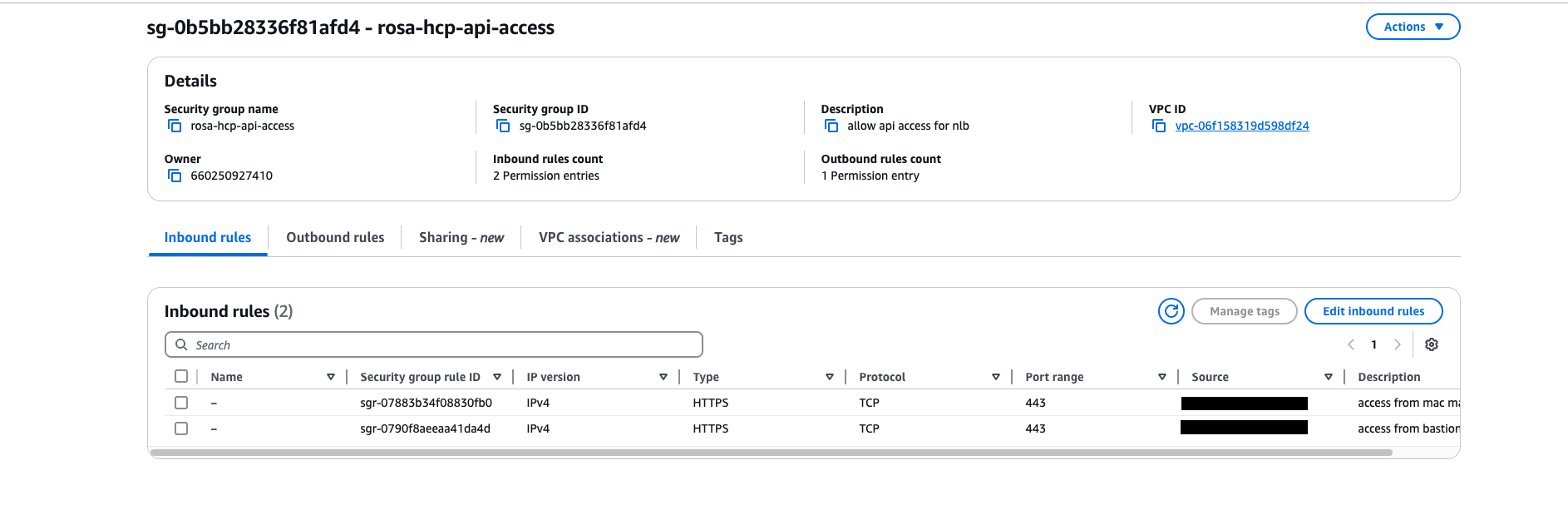
Navigate to the Security Groups section in the AWS console and click Create security group.
- Name tag: Choose a descriptive name (for example
rosa-hcp-api-nlb-sg). - VPC: Select the VPC where the NLB and VPC endpoint targets are located (
${VPC_ID}). - Inbound rules: Add a rule for TCP port 443 from trusted sources only (for example My IP or a specific CIDR). Avoid
0.0.0.0/0unless your security review requires it. - Click Create security group and note the security group ID as
NLB_SG_ID.
Example output from the AWS console:
Or create the NLB security group with the AWS CLI:
Allow the NLB to reach the API VPC endpoint
The API VPC endpoint security group must allow inbound TCP 443 from the NLB security group. If you created a dedicated security group for broader API access, you can attach it to the VPC endpoint as described in Configuring ROSA with HCP Private Cluster API Access .
If ingress from the NLB security group is already allowed, AWS returns an error you can ignore.
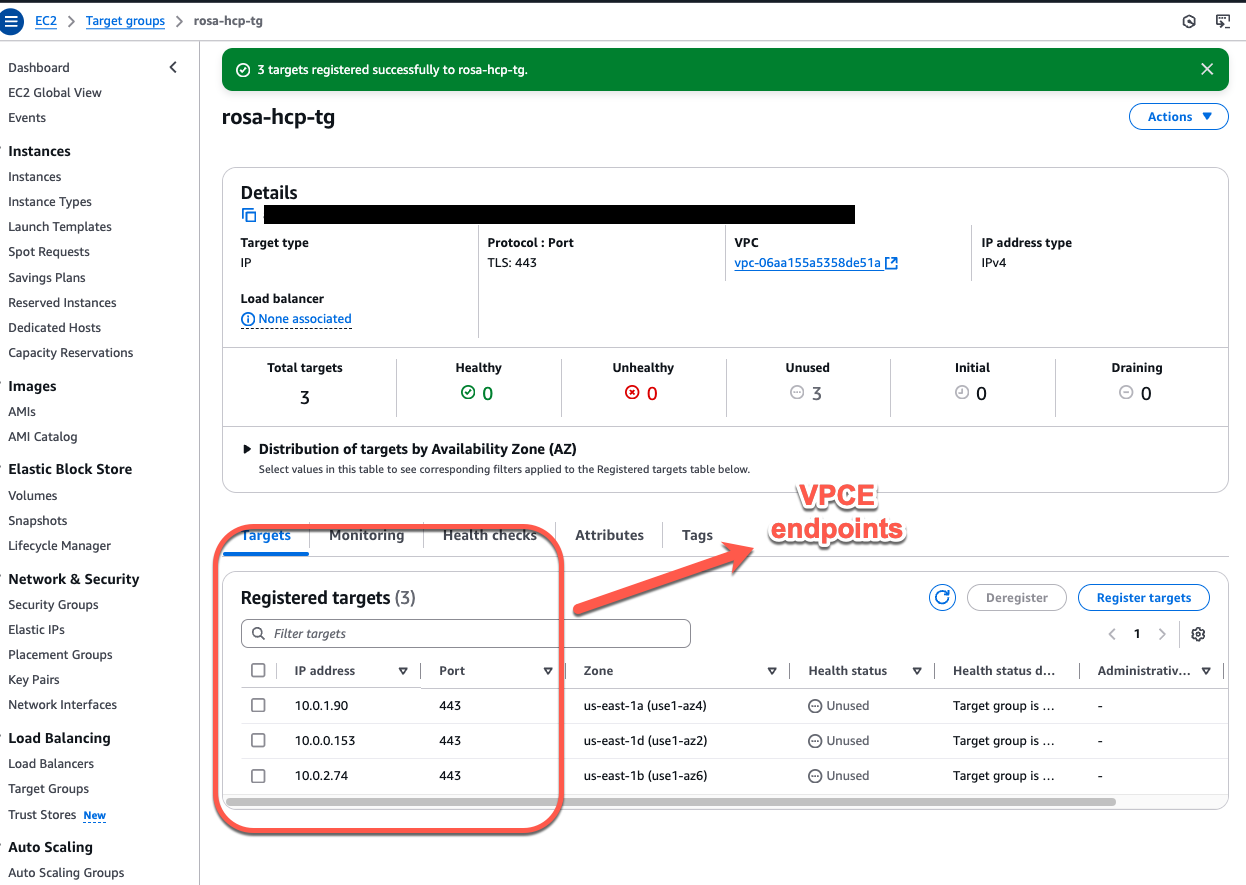
Create a target group with VPC endpoint IPs as targets
Define the target group with the private IP addresses of the API VPC endpoint ENIs (${VPCE_IPS}).
-
Create a target group:
- Navigate to the Target Groups section in the AWS console and click Create target group.
- Target type: Select IP addresses.
- Protocol: Choose TLS.
- Port: Set the Port to 443.
- VPC: Choose the VPC where the ROSA HCP API VPC endpoint is located (
${VPC_ID}).
-
Configure health checks:
- Health check protocol: TCP
- Health check port: 443
- Health check path: Leave empty for TCP health checks.
-
Add targets:
- IP addresses: Enter each address from
${VPCE_IPS}(one per Availability Zone ENI). - Click Include as pending below for each address.
- IP addresses: Enter each address from
-
Click Create target group.
Example output from the AWS console:
Create and configure the public NLB
-
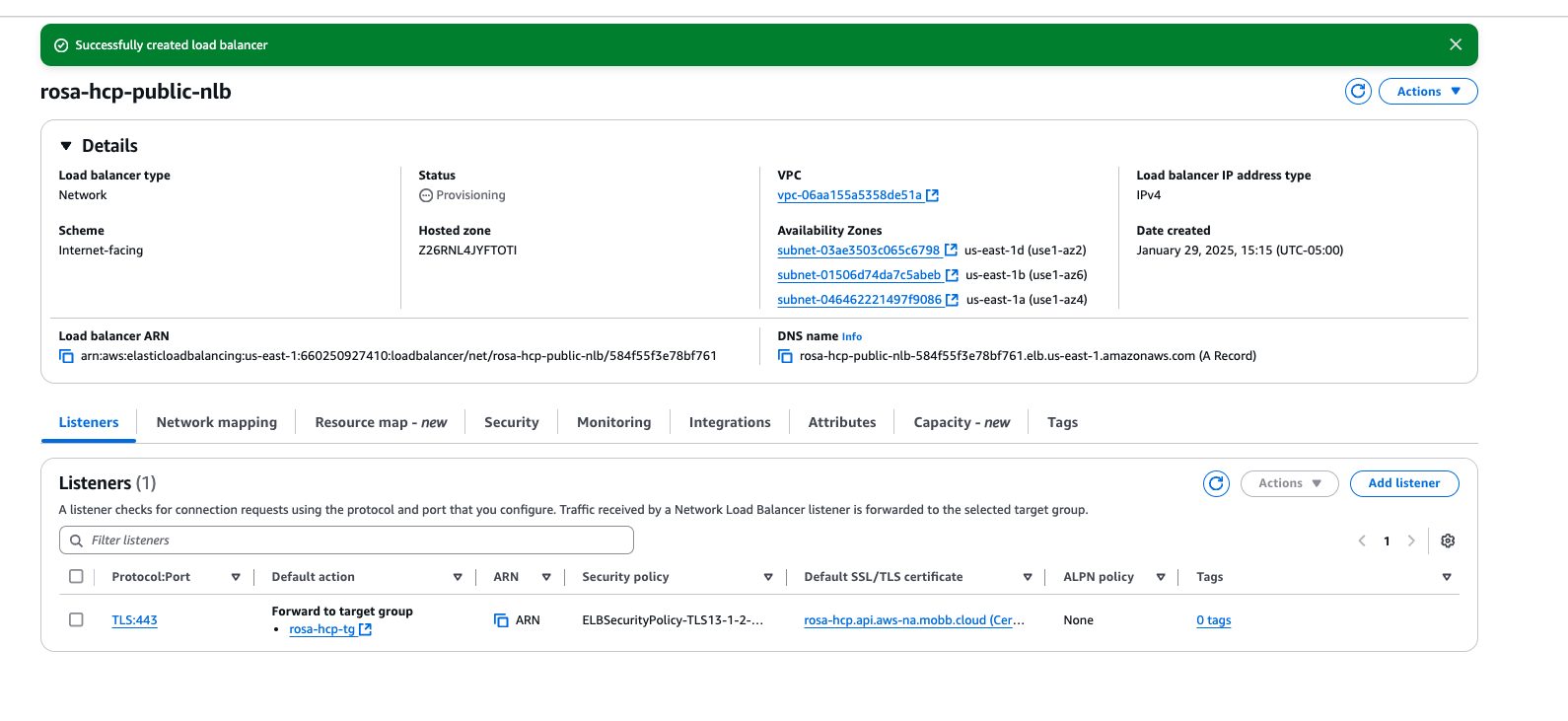
Create the NLB:
- Scheme: Choose Internet-facing.
- VPC: Select the VPC where your ROSA HCP cluster and VPC endpoint targets are located (
${VPC_ID}). - Subnets: Select public subnets in at least two Availability Zones.
- Security groups: Select ${NLB_SG_ID} (or the NLB security group you created in the console).
-
Configure listeners and routing:
- Protocol: TLS
- Port: 443
- Target group: Choose the target group you created earlier.
-
Secure listener settings:
- Certificate (from AWS Certificate Manager (ACM)): Select or create a certificate for your API domain (for example
api.example.com).
- Certificate (from AWS Certificate Manager (ACM)): Select or create a certificate for your API domain (for example
-
Click Create load balancer.
-
Update Route 53:
- Create an Alias record for your API domain (for example
api.example.com) that points to the NLB DNS name.
- Create an Alias record for your API domain (for example
Example output from the AWS console:
Validate the connection to the NLB
Validate that you can access the NLB from your machine using the API domain name:
Example output (values vary by cluster version):
Validate connection to the ROSA HCP cluster API
If you have not already done so, set API_URL to the NLB endpoint (for example https://api.example.com).
Create a kubeconfig file with Entra ID details for a ROSA HCP cluster with external auth enabled . For example, create rosa-auth.kubeconfig with the following information:
Set the KUBECONFIG environment variable to the location of the rosa-auth.kubeconfig file:
Confirm your access to the cluster:
Example output:
To verify you are logged in as an Entra ID user, run:
Example output:
Related guides
- Securely exposing an application on a private ROSA cluster with a Network Load Balancer (application ingress pattern)
- Configuring ROSA with HCP Private Cluster API Access (VPC endpoint security groups)
- Configuring Microsoft Entra ID as an external authentication provider
